

How to Clean Fake Traffic in GA4 Using the New Hostname Include Filter (Step by Step)
- September 25, 2026
- Blogs
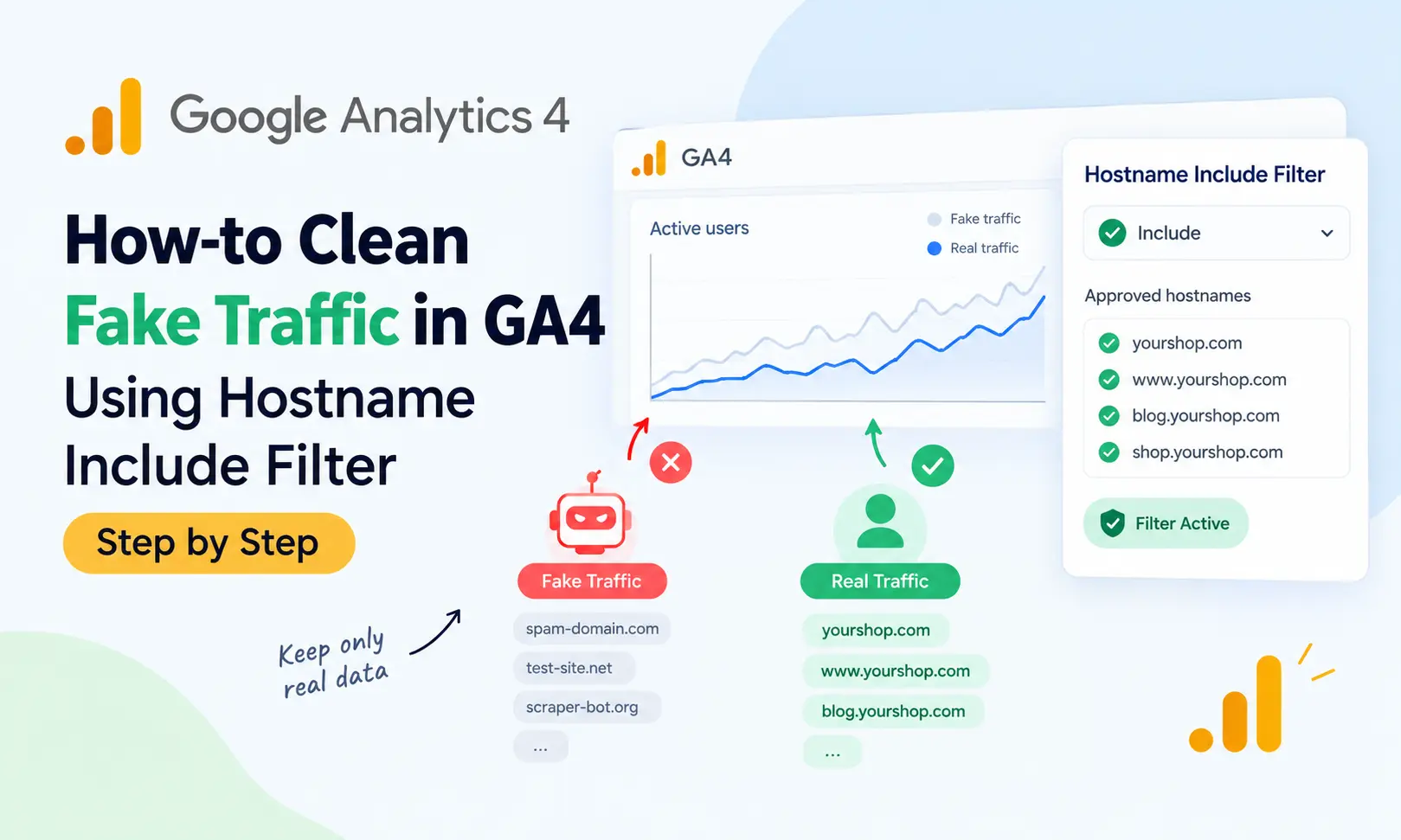
Clean up fake traffic in GA4 with the new Hostname Include Filter. Follow this simple step-by-step guide to protect your analytics data and focus on real website visitors.
When you open your Google Analytics report, do you sometimes see a sudden increase in visitors? You did not run any ads or publish anything special, but the graph still looks great. Before you celebrate, take a closer look. Some of that traffic may not be from real people.
Fake traffic is a common issue in Google Analytics 4 (GA4). The good news is that Google has introduced a better way to handle it. On September 21, 2026, Google added an Include mode to hostname data filters. Before this, the filter could only be used to exclude domains. Let’s understand what this means in simple terms.
What Is a "Hostname"?
A hostname is the domain name that sends data to your Google Analytics account. For example, if your website is yourshop.com, real visitors will usually appear with yourshop.com as the hostname. You can think of it like the return address on an envelope. It tells you where the data came from.
Why Do Strangers Appear in Your Reports?
It may seem strange to see a domain that you do not own in your Google Analytics account. However, this can happen for a few common reasons.
1. Ghost Spam
Your GA4 measurement ID is included in your website's tracking code, so anyone can find it. Some spammers copy this ID and send fake events directly to Google Analytics without actually visiting your website.
This means your website may never even see these "visitors."
2. Staging or Test Sites
When a developer copies your website to a test or staging site, the tracking code may also be copied. As a result, test activity can get mixed with your real customer data.
3. Content Scrapers
Some bots copy website code and publish it on another domain. When this happens, your tracking code may also work on that website. The result can be higher visitor numbers, strange pages in your reports, and incorrect conclusions.
If your reports are wrong, you may also make the wrong business decisions.
Exclude vs Include: What Has Changed?
Imagine your website is a house party.
- Exclude filter: You keep a list of people who are not allowed to enter. You have to add every unwanted visitor to the list, and new ones may keep appearing.
- Include filter: You keep a guest list of people who are allowed to enter. Anyone who is not on the list is automatically blocked.
The Include filter is easier to manage because you only need to add your own approved domains. Google says that defining approved hostnames in advance can make the setup simpler and help protect your data with less maintenance.
Step-by-Step: How to Set Up a Hostname Include Filter
Step 1: Find out which hostnames are sending data.
Before creating the filter, check your existing data. Add the Hostname dimension to a report and see which domains are appearing. Make a note of all of them. Some unfamiliar domains may be legitimate. For example, they could be Google-translated versions, cached versions, or your own subdomains. Also, make a note of any third-party booking or checkout domains that you intentionally use.
Step 2: Open the Data Filters page.
Go to:
Admin → Data collection and modification → Data filters
Then click Create Filter.
Choose the Web hostname traffic option.
Step 3: Give the filter a name and choose Include.
Give your filter a clear name.
For example: "Allowed hostnames"
Then select the Include option.
Step 4: Add your approved domains.
Add your main domain. For example: yourshop.com. If you also use www.yourshop.com, a blog subdomain, or a shop subdomain, add those as well. Make sure the spelling is exactly correct. Double-check every domain before saving the filter.
Step 5: Start in Testing mode. Do not skip this step.
GA4 data filters have three states:
- Testing
- Active
- Inactive
In Testing mode, GA4 does not immediately remove the data. Instead, it marks the matching events with a label. This allows you to check whether the filter is working correctly without risking your data. Google recommends keeping the filter in Testing mode for around 24 to 36 hours.
Step 6: Review the results and make the filter Active.
After one or two days, check your reports. If your real pages and real visitors look normal and only the unwanted hostnames are being flagged, you can change the filter to Active.
Important Things to Remember
Filters are permanent.
According to Google's documentation, the effect of a data filter is permanent. Data that is removed by the filter is not processed later and will not be available in Google Analytics or BigQuery. So, there is no undo button. This is one of the main reasons why Testing mode is so important.
Filters do not clean old data.
The filter only works on data collected after the filter is created. It does not clean your historical data. Your old reports will remain unchanged. If you want to separate old unwanted data, you can use a report filter or a segment.
Events without a hostname will be blocked.
When you use an Include filter, events that do not have a hostname will also be blocked. Most real website traffic will have a hostname, but this is another reason to test the filter before making it Active.
Server-sent data is not filtered.
Events sent through the Measurement Protocol can bypass the Include filter. The Measurement Protocol is a method developers use to send data from servers or other systems to Google Analytics. This is important if your website uses the Measurement Protocol. It is also important because ghost spam is often sent using this method. So, the Include filter is a strong way to protect browser-based data, but it is not a complete solution for all types of fake traffic.
Extra Tip for Stronger Protection
If fake traffic continues, you can consider server-side tagging. With Server-Side Google Tag Manager, your website sends data to a cloud server that you control. This can help keep your real measurement ID hidden from spammers. However, it requires more technical work, so it may be more suitable for larger or high-traffic websites.
Quick Checklist
- Note down all the hostnames sending data.
- Create a Web hostname traffic filter.
- Choose Include and add only your approved domains.
- Run the filter in Testing mode for 24–36 hours.
- Check that your real data looks normal.
- Change the filter to Active.
- Review the hostname list whenever you add a new subdomain or tool.
The last point is easy to forget. If you launch a new subdomain in the future, remember to add it to your Include list. Otherwise, its data may be blocked.
Final Thoughts
Clean data is the foundation of good marketing. If your reports are filled with fake visits, it becomes difficult to trust your bounce rate, conversion rate, and campaign results. The new hostname include filter gives website owners, from small local businesses to growing online stores, a simple way to keep the traffic that actually matters. Set up the filter carefully, test it first, and review it from time to time. This will help you make future business decisions based on more reliable data. And taking a few minutes to set it up can be well worth it.
Not Sure If Your Analytics Data Is Even Accurate?
Fixing a hostname filter is one small step. But if you're unsure whether your GA4 setup is tracking the right things, giving you clean reports, or actually helping you make decisions, that's a bigger question worth answering properly.
At Mindstory, we help businesses across Kerala and beyond set up, audit, and manage their Google Analytics alongside their SEO, website, and ad campaigns, so every number you see is a number you can trust. If you'd like a free check-up of your Analytics setup, get in touch with our team today.
About us
We are Mindstory, Digital marketing company. We design thoughtful digital experiences and beautiful brand aesthetics.
Request a free quote
We offer professional SEO services that help websites increase their organic search score drastically in order to compete for the highest rankings even when it comes to highly competitive keywords.
More from our blog
View all stories




How to Clean Fake Traffic in GA4 Using the New Hostname Include Filter (Step by Step) 3

How to Clean Fake Traffic in GA4 Using the New Hostname Include Filter (Step by Step) 4